How to Handle Tax Objections and Queries
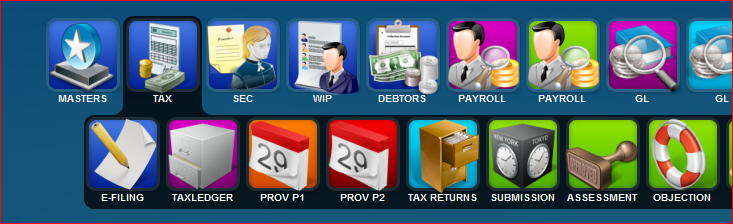
1. Select The menu option Objection from the Tax sub menu
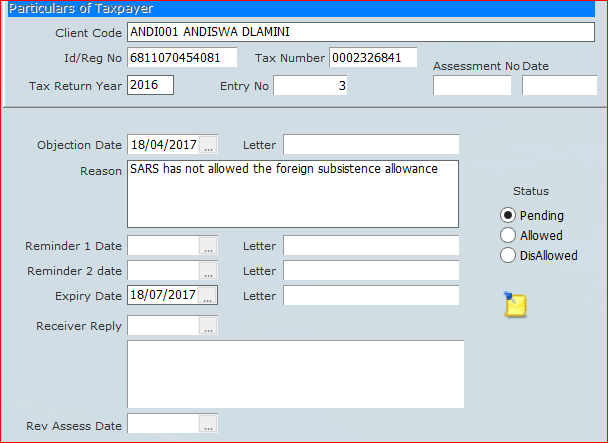
2. To create a new objection/query click on the new icon 
3. Enter the client that the objection is for,date objection lodged and the reason for the objection, also enter the expiry date as the latest date that the objection has to be resolved, normally 90 days from objection date.
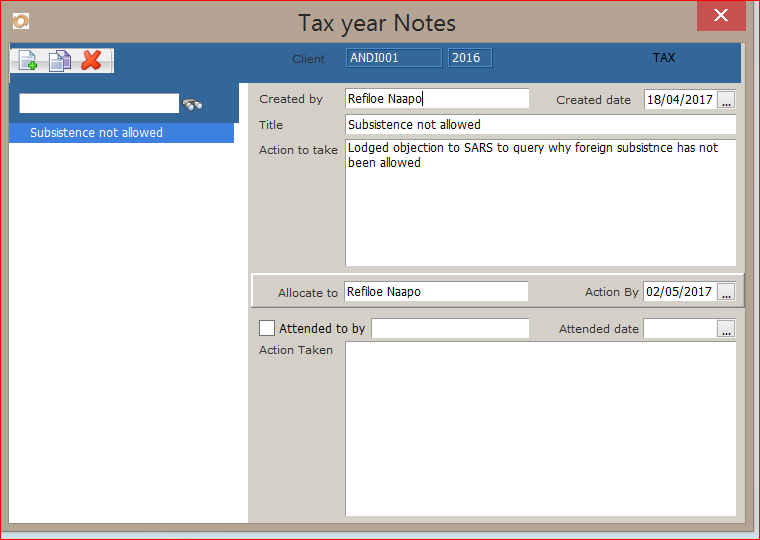
4. Click on the notes icon
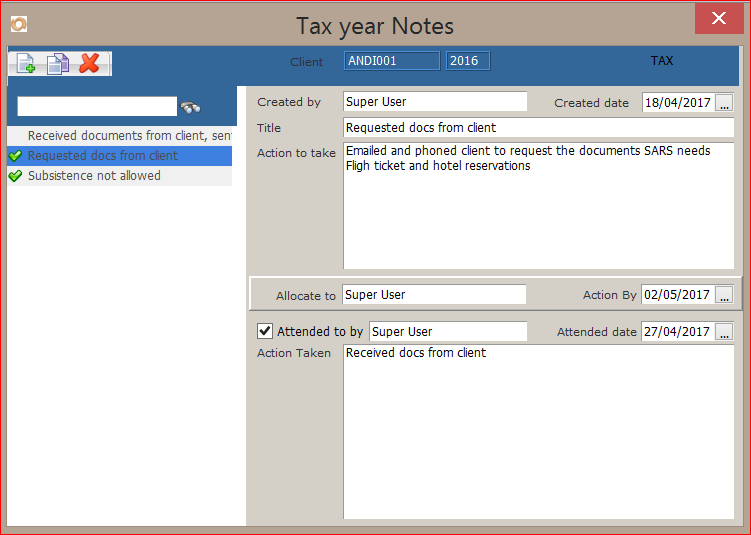
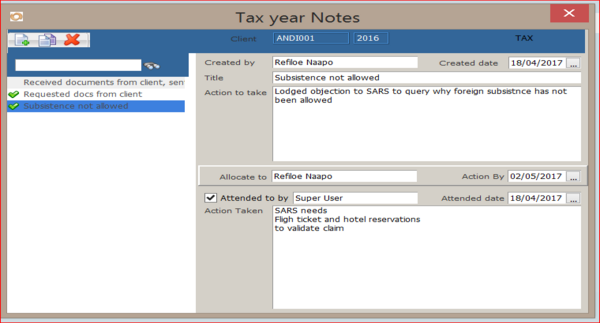
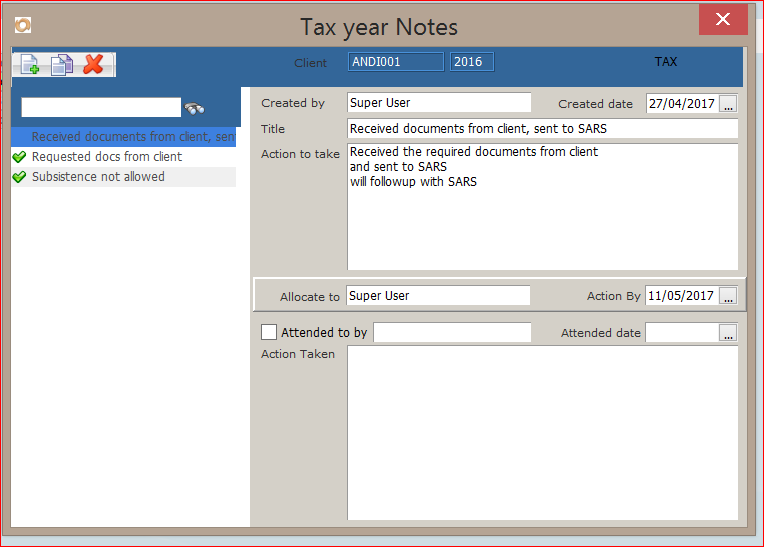
5. Click on the new icon and enter information as per example below
6. For action by date, enter a date that you would need to follow up with SARS, in the example, 14 days after objection.
7. If you require this to be followed up by someone other than yourself, change the allocate to.
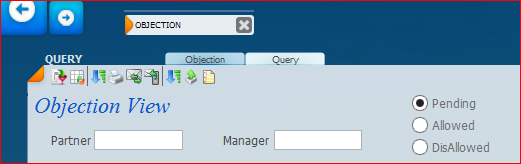
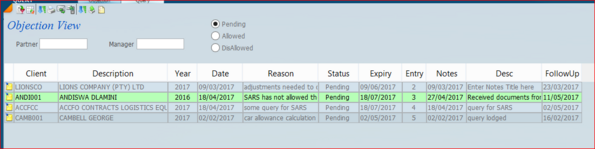
8. To view the Objections/Queries on File, select the query tab at the top
9. Select the partner ( and / or manager) if you wish to show clients only for that partner
10. Select the status type , default is for pending only queries.
11. Click on the show all icon 
12. You will now see all the queries on file as below
13. You can sort on any column , by clicking on the heading of the column
14. Where there has been a response or action on a query, click on the notes icon on the left and enter relevant information here, by tagging the current note as completed and creating new notes to detail the status and action taken/required
15. Where a query has now been allowed or disallowed
16. Click on the notes icon and enter the info here
17. Click on the Status column and change the status appropriately